Why Does My Website Say Not Secure? Full Fix Guide
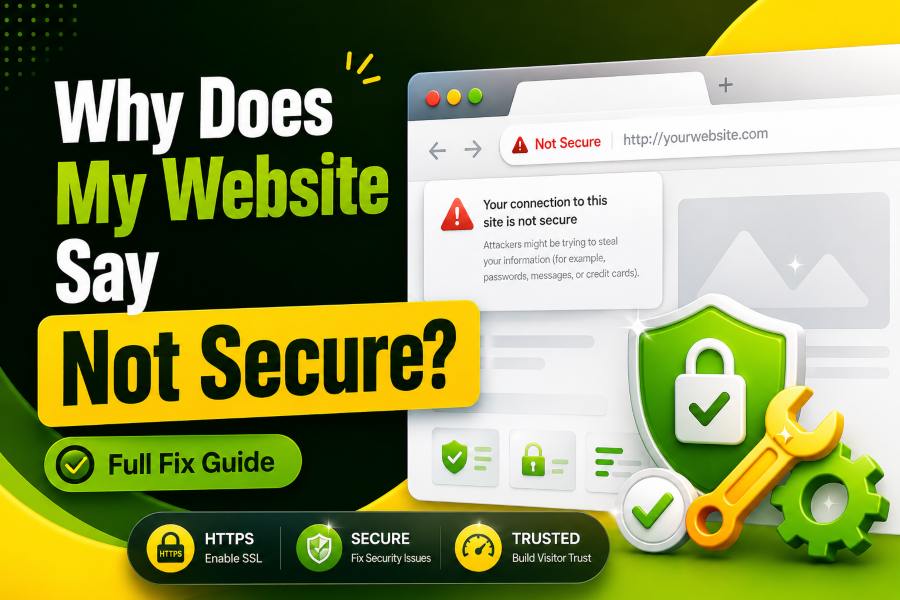
Why does my website say not secure is a question you should take seriously because the warning means your browser does not fully trust the connection. It usually points to missing HTTPS, a broken SSL certificate, expired validation, or mixed content still loading over HTTP. The fix is clear, but you must handle it cleanly because security warnings affect trust, leads, and sales.
This guide explains why your website says not secured and what you need to do. Keep reading to learn more!
A “Not Secure” warning means your visitor’s browser found a weak or unencrypted connection between their device and your website. The page may still use HTTP, the SSL certificate may be missing, or the browser may see part of the page as unsafe.
Modern users expect secure pages by default, and the web now reflects that. W3Techs reports that default HTTPS is used by about 90.0% of websites, while Google says Chrome HTTPS adoption has stayed around the 95% to 99% range since 2020.
You should treat SSL as part of your basic website setup. When you use a reliable design service to build stunning websites faster with premium themes, you still need to check that every finished page loads through HTTPS and does not leave insecure files behind. A good-looking site can still lose trust when the browser shows a warning.
Your browser shows this warning because it checks the connection before users trust the page. If the page loads through HTTP instead of HTTPS, the browser knows the traffic is not encrypted and warns visitors before they type anything sensitive.
Chrome is also moving toward stronger warnings for insecure HTTP pages. Google announced in 2025 that HTTPS connections make up roughly 95% to 99% of Chrome connections, and wider warning behavior is expected to expand through 2026, starting with Enhanced Safe Browsing users.
Expert tip: Do not only test your homepage. Open product pages, blog posts, checkout pages, contact forms, image URLs, and login pages, as a single weak template can trigger the warning across many URLs.
HTTP sends data between a browser and your server without encryption. HTTPS adds SSL/TLS encryption, which helps protect form entries, passwords, cookies, payment details, and browsing activity from basic interception.
Security also connects with speed and modern browser behavior. W3Techs shows HTTP/3 usage at near 39.8% and HTTP/2 at near 35.4%, which matters because secure, modern protocols often work best when HTTPS is configured correctly.
Indexing can suffer when Google sees confusing versions of the same site. A site owner who studies questions like “why is my WordPress site not showing up oon Google” will usually find that crawl access, technical structure, canonical URLs, and trust signals all need to work together. HTTPS gives search engines one clean, secure version to crawl and users one trusted version to open.
The most common cause is simple: your site does not have a valid SSL certificate installed. The second common cause is a partial HTTPS setup, where the page opens securely, but images, scripts, fonts, iframes, or CSS files still load through HTTP.
Certificate problems also trigger warnings. Your SSL may have expired, been issued for a different domain, be missing an intermediate certificate, be installed on the wrong server, or be blocked by a hosting misconfiguration.
Access errors can confuse owners because they look like a security issue when they are actually permission or server-rule problems. If your site blocks visitors or crawlers, questions like, “why am I getting 403 forbidden” fits that problem better than an SSL warning, because 403 errors usually involve permissions, firewalls, or access rules. Check both issues separately so you do not fix SSL while leaving server access broken.
Many site owners install SSL and expect the warning to vanish immediately. It often stays because the browser still detects mixed content, which means at least one page resource still loads with an old HTTP path.
Mixed content can hide in image URLs, old theme files, hard-coded scripts, plugin settings, page builders, database entries, and CDN links. A single old tracking script or logo image can make a page look suspicious even when the main URL starts with HTTPS.
Mobile pages need the same treatment because visitors often notice security warnings on phones first. A responsive layout should still load secure images, secure scripts, and secure fonts on every screen size.
An SSL certificate helps prove that a certificate authority has validated the domain or organization behind the site. The browser checks that certificate, confirms the domain match, and then creates an encrypted session for the visitor.
There are three common validation levels. Domain Validation confirms control of the domain, Organization Validation checks business details, and Extended Validation uses deeper organization review.
Let’s Encrypt shows how normal HTTPS has become. In late 2025, it said it was frequently issuing ten million certificates per day and was moving toward a future with around a billion active sites using its certificates.
Start by opening your website in a private browser window and checking whether the address begins with HTTPS. Then click the browser’s security icon and review the certificate name, expiration date, issuer, and warning details.
Next, test your most important templates. Check the homepage, contact page, blog post, category page, checkout, account page, and any landing page that collects leads. You can also use tools like Morse Translator when checking how different online tools handle secure connections and user interactions.
Expert tip: Do not rely on one browser. Test Chrome, Safari, Firefox, Edge, desktop, and mobile because cache, certificate storage, and browser warning language can differ.
First, install a valid SSL certificate through your hosting account, control panel, CDN, or certificate provider. Then force all HTTP pages to their HTTPS versions with 301 redirects so visitors and search engines stop landing on the insecure version.
Next, update your WordPress address, site address, internal links, canonical tags, sitemap URLs, image paths, scripts, fonts, and CDN settings. If you use a cache plugin, clear all cache after the update because old cached HTML can keep insecure links alive.
Finish with a full crawl. You want one secure version of every important page, not several competing URL versions.
Mixed content means your secure page still pulls insecure assets. Browsers may block active mixed content such as scripts and iframes, while passive mixed content such as images may still load but weaken the page’s trust signal.
Use this checklist before you call the job finished:
Expert tip: Fix the source of the HTTP asset, not just the visible page. If a plugin keeps printing an insecure script, update the plugin setting or replace the plugin.
HTTPS is not a magic ranking button, but it is part of a trustworthy technical foundation. Google has used HTTPS as a lightweight ranking signal since 2014, and secure browsing has become a normal user expectation across search results.
The bigger SEO problem is confusion. If your HTTP and HTTPS versions both exist, search engines may see duplicate URLs, split signals, crawl the wrong page, or index the weaker version.
Businesses that depend on local search, including Injury Lawyer Duluth, benefit from a secure website because it helps build user trust and supports a stronger online presence.
Security warnings also reduce engagement. When users bounce from a warning screen, your content loses the chance to earn clicks, leads, shares, comments, and conversions.
A not-secure page exposes visitors to avoidable risk. Attackers may intercept form data, steal session cookies on weak connections, inject malicious content, or redirect users through unsafe network behavior.
HTTPS does not prove a website is honest, and that matters. Research in 2025 noted that phishing remains widespread, with over 1 million phishing pages identified in 2024, so users must still assess the site, brand, and page behavior.
Even simple online utilities such as a Morse Code Translator should use HTTPS to protect user interactions. Professional websites such as Titan Law Office need strong security practices because visitors often share sensitive information through online forms and communication channels.
Your job is to remove preventable doubt. A valid certificate, clean redirects, safe forms, updated software, and honest branding make users more comfortable taking the next step.
Renew certificates before they expire and enable automatic renewal where your host supports it. Many free and paid SSL systems renew automatically, but renewals can fail when DNS, validation files, email records, or server permissions change.
Keep a monthly maintenance checklist. Check SSL expiry, redirect rules, mixed content, plugin updates, CMS updates, CDN settings, and Search Console coverage.
Expert tip: Add SSL monitoring to your normal website health checks. You should know about a certificate problem before your customers see it.
Why does my website say not secure is not just a browser question. It is a trust, security, SEO, and conversion question that tells you something in your HTTPS setup needs attention. Start with the SSL certificate, then check redirects, mixed content, internal links, canonical tags, cache, CDN settings, and mobile pages.
Fix the warning once, then monitor it so it does not return after updates, migrations, domain changes, or renewal failures. When your site loads cleanly through HTTPS everywhere, you create a safer and more professional experience for every visitor.
Your site may still load mixed content, use an expired certificate, or have a certificate that does not match your domain.
It can be risky because data may travel without proper encryption, especially on forms, checkout pages, login pages, and account areas.
Install a valid SSL certificate, force HTTPS redirects, update internal links, remove mixed content, clear cache, and test again.
Chrome warns users when a page uses HTTP or has a broken HTTPS setup, including expired, invalid, or mismatched certificates.
SSL supports SEO because HTTPS is a lightweight ranking signal and helps create a trusted crawl path.
Yes, a free SSL certificate can fix the warning when it is valid, installed correctly, and renewed on time.
Mixed content happens when an HTTPS page loads some files through HTTP, such as images, scripts, fonts, videos, or iframes.
A simple SSL installation can take minutes, but a full cleanup may take longer if your site has outdated database links or hard-coded assets.
Yes, use 301 redirects from HTTP to HTTPS so users and search engines land on the secure version.
Yes, every modern website should use HTTPS because blogs, portfolios, local businesses, and tool sites all benefit from encryption and trust.
Build stunning portfolios and agency websites with a modern, flexible, and fully customizable WordPress theme powered by Elementor.