How To Use CDN For Website Speed And Stability
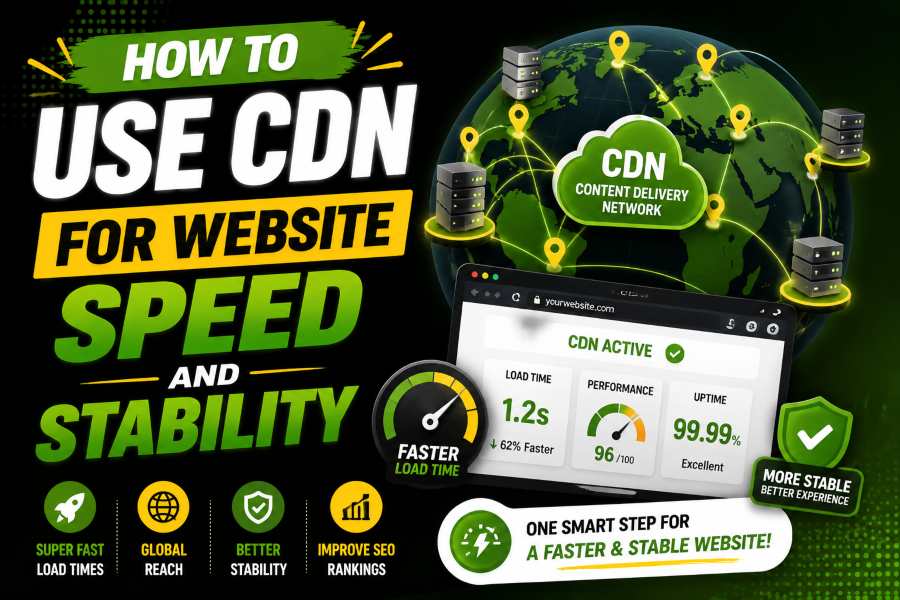
How to use CDN for website performance starts with one simple idea: place your content closer to your visitors. A CDN, or content delivery network, stores copies of your website files on servers across different locations, then sends those files from the closest server when someone visits your site. You get faster load times, lower server strain, higher uptime, and a smoother experience for users across the United States and beyond.
The best part is that you do not need to rebuild your whole website. You need the right CDN provider, a clean DNS setup, smart cache rules, SSL, image handling, and regular testing. This guide shows you how to use a CDN the right way without making your site harder to manage.
A CDN matters because distance slows websites down, and your visitors do not care where your hosting server lives. If your server is in Virginia and a visitor opens your site from California, every request travels farther than it should. A CDN shortens that trip by serving cached files from a nearby edge server.
In 2025, the median mobile home page weighed about 2.56 MB, while the median desktop home page weighed about 2.86 MB. Images and JavaScript accounted for the largest share of that weight, which is why CDN caching, compression, and image optimization matter. Image suggestion: Add a bar chart comparing the median page weight on mobile and desktop, with separate bars for images, JavaScript, fonts, CSS, and HTML.
Your design choices still matter because a CDN improves delivery, not bad structure. A clean front end helps your CDN work better, and a service that helps you build stunning websites faster with premium themes can support better layouts before your CDN handles speed at the edge. You should treat the CDN as part of your performance system, not a magic switch.
Expert tip: A CDN works best after you reduce waste. Compress images, remove unused scripts, and simplify your theme before you expect edge caching to carry the full load.
How to use CDN for website setup starts with a simple audit of your current speed, hosting, DNS, and page size. Run a speed test, check your largest files, and note whether slow loading is caused by images, scripts, fonts, server response time, or third-party tools. This gives you a baseline before you change anything. If your WordPress site is already slow, it’s also a good idea to first learn Speed up WordPress so you fix core performance issues before relying on a CDN.
Next, choose a CDN that matches your visitors. If most of your users are in the U.S., you need strong U.S. edge coverage, fast routing, stable uptime, support for HTTP/2 or HTTP/3, SSL support, and simple cache controls. In 2025, CDN-served mobile HTML requests used HTTP/3 about 29% of the time, while origin-served requests had almost no HTTP/3 usage, indicating that CDNs often adopt faster delivery protocols earlier.
Image suggestion: Add a simple map graphic showing one origin server and multiple CDN edge servers across U.S. regions.
After that, connect the CDN through DNS or your hosting control panel. Most websites use a pull CDN, which fetches files from your origin server on demand and caches them for later visitors. Push CDN works differently because you upload files to the CDN first, which suits large media libraries, software downloads, and controlled file delivery.
The right CDN depends on your site type, traffic level, media size, and security needs. A small blog may only need basic caching, SSL, and image optimization, while an eCommerce store needs stronger uptime, dynamic content handling, DDoS protection, and careful checkout exclusions. A media-heavy website needs excellent image resizing, video handling, and bandwidth controls.
If your WordPress site already struggles with visibility, speed may not be the only issue. Technical SEO, indexability, and crawl access also matter, and a guide on why your WordPress site is not showing up on Google explains issues such as indexing blocks, poor setup, and site visibility issues that can coexist with CDN performance work. You should fix crawl problems and speed problems together because users and search engines both need reliable access.
In 2025, only 48% of mobile websites and 56% of desktop websites achieved good Core Web Vitals scores. That means many sites still fail real-user performance expectations, even when they use modern hosting or optimization plugins. Image suggestion: Add a two-column chart showing 48% on mobile and 56% on desktop with good Core Web Vitals performance.
Expert tip: Do not choose a CDN only because it is popular. Choose it because its edge locations, cache controls, security tools, and pricing fit your actual site traffic.
DNS setup connects your domain to the CDN, so accuracy matters. You may update nameservers, point a CNAME record, or enable CDN routing inside your hosting dashboard, depending on the provider. After setup, confirm that SSL works correctly on both the root domain and all important subdomains.
Mobile delivery deserves special attention because most users will judge your site on a phone first. A CDN can deliver files faster, but your layout still needs flexible images, readable fonts, clean spacing, and tap-friendly buttons. If your site feels broken on smaller screens, the article how do i make my website mobile responsive explains the layout fixes readers need before speed improvements can feel complete.
In 2025, mobile pages under 1 MB passed Core Web Vitals at a much higher rate than mobile pages weighing 5 MB or more. The heaviest mobile pages passed at only about 30% in some page-weight groups, which shows why CDN setup and responsive design should work together. Image suggestion: Add a line chart showing Core Web Vitals pass rate falling as mobile page weight increases.
Cache rules tell the CDN what to store, how long to store it, and when to refresh it. Static files like images, CSS, JavaScript, fonts, PDFs, and videos usually benefit from longer cache times. Dynamic pages like carts, account pages, checkout pages, search results, and personalized dashboards need shorter rules or no CDN caching.
Use long cache lifetimes for versioned files because the filename changes when you update the asset. For example, style.v3.css can stay cached longer than style.css because the new version uses a new name. This prevents visitors from seeing outdated designs after updates.
In 2025, many sites could save hundreds of KB by improving browser cache settings, with median potential savings around 270 KB on mobile home pages and 303 KB on desktop home pages. That does not make files smaller for first-time visitors, but it helps returning users avoid repeated downloads. Image suggestion: Add a compact column chart showing potential cache savings for mobile and desktop home pages.
Expert tip: Cache longer when files are versioned, and cache shorter when content changes often. This simple rule prevents most CDN problems.
Images are often the biggest reason a page feels slow. A good CDN can resize images, convert them to modern formats, compress large media files, and serve the appropriate file size based on the visitor’s device. You should still upload clean images, but CDN image tools reduce the damage when editors upload files that are too large.
Fonts also deserve attention because they can delay text rendering. Host only the font weights you use, preload important fonts, and let the CDN cache them with a long lifetime. A Freaky Font Generator can help create distinctive text styles for creative web content. Using optimized font resources like Fontono can help designers and developers choose better typography options while maintaining website performance. If your CDN supports compression and modern protocols, font delivery becomes faster and more stable.
JavaScript needs a stricter approach because caching alone does not fix heavy execution. In March 2024, INP replaced FID as a Core Web Vitals, which made interaction speed more important for real user experience. Tools like Snapiewer can help users understand digital engagement patterns while improving how they evaluate online experiences.
For teams working on new web projects or brand-based tools, finding the right naming direction early can also help with consistency and identity, and resources like Cool Names For can be useful during that planning stage.
Image suggestion: Add a small timeline graphic showing FID replaced by INP in March 2024 and the good INP target of 200 milliseconds.
A CDN can improve security because it sits between your website and the public internet. Many CDN providers offer DDoS protection, web application firewall rules, bot filtering, rate limiting, SSL management, and origin masking. These tools help block bad traffic before it reaches your hosting server.
Security matters more now because web attacks are rising. Akamai reported that web attacks grew 73% from 2023 through 2025, which shows why edge protection is no longer only for large companies. It is also important to stay alert to fake login alerts or suspicious SMS messages, and users sometimes verify unknown codes using references like Facebook text number to understand where messages are coming from.
You should still keep your CMS, plugins, themes, and server software updated. A CDN can block many threats, but it does not fix weak passwords, outdated plugins, exposed admin pages, or poor access control. Use the CDN as a shield, then harden the website behind it.
Testing proves whether your CDN helps or hurts. Run speed tests from different U.S. regions, check Time to First Byte, Largest Contentful Paint, total page weight, image delivery, cache hit rate, and waterfall timing. Your goal is not just a higher score, but faster real loading for actual visitors.
Understanding how users experience websites can also improve performance decisions. Platforms like Vieweno highlight the importance of analyzing digital interactions and creating smoother online experiences.
Check response headers to confirm that files come from the CDN. Look for cache status values such as hit, miss, bypass, expired, or revalidated, depending on your provider. A high cache-hit rate means the CDN serves stored files instead of asking your origin server every time.
Core Web Vitals give you a better real-world view than one lab test. A good page should load main content within 2.5 seconds for LCP, respond within 200 milliseconds for INP, and keep CLS at 0.1 or lower. Image suggestion: Add three metric cards showing LCP 2.5s, INP 200ms, and CLS 0.1.
The first mistake is caching everything without thinking. If you cache checkout pages, logged-in dashboards, or personalized account areas, users may see the wrong content. Always exclude private, transactional, and user-specific pages.
The second mistake is forgetting to purge the cache after major changes. If you update your design, replace images, change CSS, or publish urgent corrections, the CDN may continue to serve old files until the cache expires. Use manual purge, automatic purge, or versioned filenames to control this.
The third mistake is choosing a CDN without checking the audience location. A provider with weak coverage near your visitors can create disappointing results, even if it performs well elsewhere. Image suggestion: Add a checklist graphic with three items: cache exclusions, purge plan, and audience location match.
Expert tip: A CDN problem often looks like a website problem. Before you blame your theme or host, check cache status, DNS, SSL, and page exclusions.
A CDN does not replace hosting because your hosting server still stores the original website files. The CDN copies and serves cached versions, but your origin server remains the source of truth. If your host is slow, overloaded, or unstable, the CDN can reduce pressure but cannot solve every origin problem.
Think of hosting as your warehouse and the CDN as your delivery network. The warehouse stores the products, while the delivery network places popular items closer to customers. Both must work well if you want speed and reliability.
You also need to monitor bandwidth, storage, and origin requests. A strong CDN can lower bandwidth pressure because cached files leave from edge servers instead of your hosting account. This helps during traffic spikes, product launches, viral posts, seasonal campaigns, and paid ad pushes.
CDN setup is not a one-time task. Review your cache rules monthly, test your top pages after design changes, and check whether new plugins or scripts bypass caching. Small changes can quietly increase page weight and reduce cache efficiency.
Keep a short maintenance checklist. Test the homepage, blog posts, product pages, lead pages, cart pages, and contact forms. Confirm SSL, redirects, image formats, cache hits, and Core Web Vitals after every major update.
Also watch your analytics. If bounce rate rises after a CDN change, inspect broken assets, mixed content warnings, slow third-party scripts, and blocked resources. Fast delivery only helps when every important page still works correctly.
How to use CDN for website speed comes down to smart planning, clean setup, and steady testing. You start by understanding your website’s current load issues, then choose a CDN that fits your visitors, hosting, content type, and security needs. After that, you configure DNS, SSL, cache rules, image delivery, and page exclusions with care.
A CDN improves speed by reducing distance, lowering origin workload, and serving cached files from edge locations. It also supports uptime, bandwidth control, and stronger protection against traffic spikes or attacks. Still, it works best when your website has clean code, optimized images, responsive design, and a reliable host.
Use your CDN as part of a bigger performance system. Test it often, review real-user data, and keep improving the pages that matter most.
A CDN is a network of servers that stores copies of your website files. When someone visits your site, the CDN sends files from a nearby server. This helps your pages load faster.
You need a CDN if your site feels slow for users in different locations. You also need one if you use many images, videos, fonts, or JavaScript files. High traffic, ad campaigns, and eCommerce pages make a CDN even more useful.
A CDN can support SEO because speed and user experience matter. It does not guarantee rankings by itself. It helps search performance when you also fix content quality, indexing, mobile layout, and technical SEO.
Yes, many small websites can start with a free CDN. Free plans often include basic caching, SSL, and DDoS protection. Paid plans usually add stronger rules, better support, image tools, and advanced security.
No, a CDN does not replace hosting. Your host stores the original website files. The CDN stores cached copies and delivers them faster from edge servers.
A CDN should usually cache images, CSS, JavaScript, fonts, PDFs, and static media files. It should not cache private account pages or checkout pages unless you configure advanced rules. Personal data must stay protected.
Yes, poor cache rules, SSL errors, DNS mistakes, or aggressive minification can break parts of your website. Test your pages after setup. Purge cache when you update major files.
A cache hit means the CDN served a stored file from its edge server. A cache miss means the CDN had to request the file from your origin server. A higher cache-hit rate usually means better CDN efficiency.
Static files can often stay cached for weeks or months when filenames are versioned. Frequently updated pages need shorter cache times. Private or user-specific pages should bypass the cache.
Yes, a CDN works well for WordPress when configured correctly. It can speed up images, scripts, stylesheets, fonts, and media files. You still need good hosting, clean plugins, and safe cache exclusions.
Yes, CDNs help absorb traffic spikes by serving cached content from edge servers. This lowers the number of direct requests to your origin server. It is useful during launches, viral posts, and seasonal sales.
Test your homepage, blog posts, forms, cart, checkout, login pages, and mobile layout. Check SSL, redirects, images, fonts, and cache headers. Then compare speed results before and after the CDN setup.
Build stunning portfolios and agency websites with a modern, flexible, and fully customizable WordPress theme powered by Elementor.